Viewing Customer Details
From Amicus


| Amicus | |
| Viewing Customer Details | |
| See Also Submit feedback on this topic | |
| Key Areas > Customers > Customer Maintenance > Viewing Customer Details |
Glossary Item Box
To find the customer you want to view, click Customers on the Main Menu followed by Add / Edit Customers. Alternatively, click Customers on the Toolbar and then click Add / Edit Customers. This will display the Add / Edit Customers screen. Make sure the Details tab is selected (refer to Details Tab for a detailed explanation of this screen).
If you know the customer number for this customer, enter it in the Number field and press Tab or Enter or click on the Find button.
If you do not know the customer number, you can search for a customer using any of the contact information fields on the Details Tab, such as Surname (or Company), Home Phone, Work Phone, Mobile Phone or Facsimile. Enter the information that you know and press Enter or Tab or click on the Find button.
If there is only one customer who matches the details you entered, then that customer’s details will be displayed on the Add / Edit Customers screen. If there is more than one customer, then you will be presented with the following Select a Customer screen:
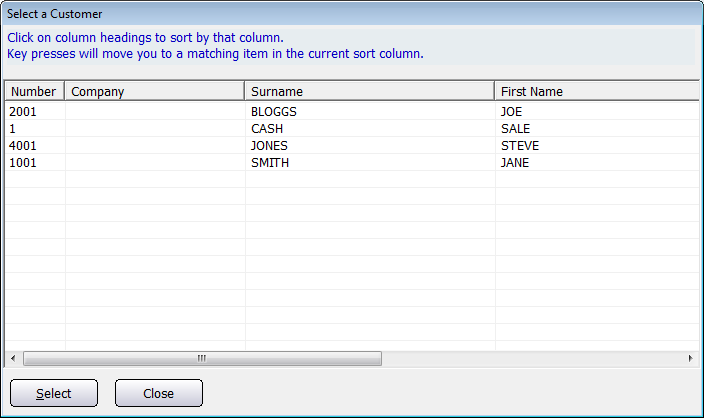
Figure : List of customers
From the Select a Customer screen, you can find the desired customer from the list of customers. Once you have found the customer click on the Select button to add their details to the Add/Edit Customers Details tab. You can then view the customers details from the Details tab.