Secondary Printers
From Amicus


| Amicus | |
| Secondary Printers | |
| Submit feedback on this topic | |
Glossary Item Box
To add an additional printer, click the Add button in the Secondary Printers section of the Printer Setup dialog and the Add/Edit Secondary Printer dialog will be displayed. Select A4 or Strip Printer Type and enter the required information for the selected printer as described in the above sections.
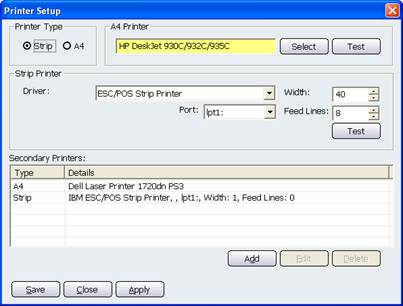
Figure : Secondary Printers added
Click Accept to store the information you have entered and to close this window.
Click Close to exit this window without saving the information
To edit an existing printer setting, click the Edit button in the Secondary Printers section of the Printer Setup dialog and the Add/Edit Secondary Printer dialog will be displayed. Edit the information as applicable and click Accept to save and close this window.
If you wish to delete the details of an existing printer, select the details of that printer and then click the Delete button. A Confirm Removal dialog will then be displayed asking you whether or not to perform the deletion. Select Yes to complete the deletion or No to exit the dialog without making any changes.
When extra printers have been added they will be displayed in the Secondary Printers list as shown in Figure .
Tab controls
These buttons appear at the bottom of the Printer Setup dialog.
The Save button will save your changes and exit this screen.
When you click the Close button and changes have been made to the information, a confirmation screen will appear asking whether you want to save the changes.
The Apply button will save your changes immediately and leave the Printer Setup screen open.