Invoice, Report and Statement Printers
From Amicus


| Amicus | |
| Invoice, Report and Statement Printers | |
| See Also Submit feedback on this topic | |
| Preferences > Printer Settings > Invoice, Report and Statement Printers |
Glossary Item Box
To access the settings for your invoice, report and statement printer, select the A4 radio button in the Printer Type area.
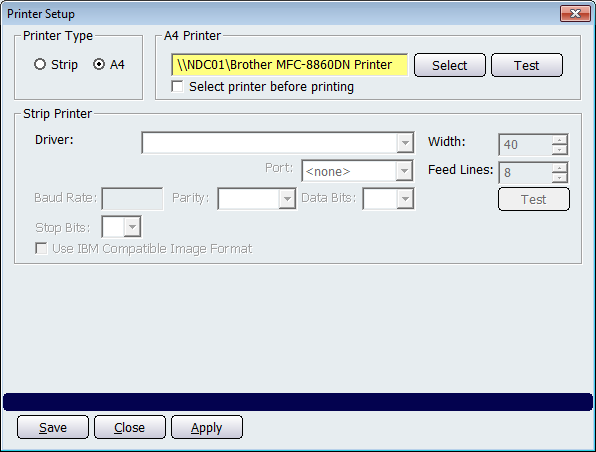
Figure : Settings for your A4 printer
To add an A4 printer click the Select button, this opens the Print dialog where the appropriate printer can be selected. Figure shows an A4 printer added to NBS Amicus. Click on the Select printer before printing tick box to ensure that a printer must be selected before printing.
Click on the Test button to print out a test page to the selected printer. This will then send out a test page to your configured printer so that you can see whether it is working correctly.
To ensure that the printer is working correctly, click the Test button.
Buttons that perform actions on the Printer Setup screen includes: Save, Close, and Apply.