Running Macros
From Alchemex 7.1
Home >
Running Macros
If a report template that you have created contains macros that you wish to use each time the report is run, then type the names of the macros you wish to run in the "Run Macros on Completion" property of your report.
To do this, enable the Advanced Options Menu on the Report Manager Interface
by checking the Show Advanced  check box.
Type the name of your Macros in the "Run Macros On Completion" property field and click on the Apply button.
The Macros in your report template that have been specified will now be run every time that the report is run.
If there is more than one macro that needs to be run then separate their names with semi-colons
If a Macro takes parameters then place these in brackets after the macro name in a comma separated list

Macros will always run after any Add-Ins should you have any Add-Ins placed in the "Run Add-Ins" property
Combine macro names and Add-Ins in the same property to ensure the correct order thereof when running the report. Example: To have a macro run before an Add-In, place the macro name in the "Run Add-Ins" property before the Add-In
Creating new Macros from Microsoft Excel
Open your Report Manager.
Select the report that you want the macro to run in, run the report or open the Microsoft Excel template.
Create the macro you want to run automatically, ensuring that in your macro you specify which sheet you need the macro to work in. (This will help by forcing the macro to select the correct sheet even after you Create and Link the workbook with a different active sheet).
Once you have created and tested your macro, save the template back or create and link the workbook back to the report.
Highlight the report in which you have created the macro, under the Properties tab, tick the Show Advanced option at the bottom of the screen.
In the advanced options list that is now available, locate the Run Macros on Completion option.
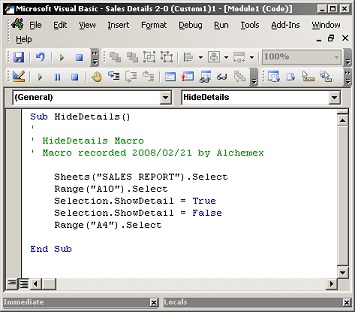

In the text box type the name of the macro you created.