Creating a basemap
From eCtune
Creating a basemap
Select file -> New or press the new basemap button
on the toolbar.
 Toolbar new button
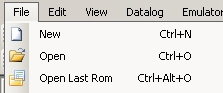 New file menu item
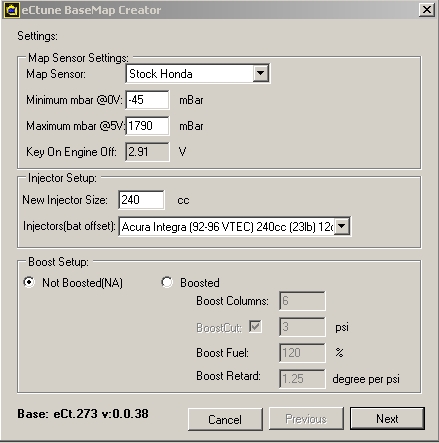
eCtune BaseMap Creator -
Parameters
Mapsensor: Select a
predefined mapsenor or fill in the min and max mbar.
Note: If you want
to know if you configuration is good. The KOEO mbar displayed shouldn't differ
much from the PA(baro) mbar
Injector Setup: Select the injector size(this
will adjust injector fuel trim and crank fuel trim) select the correct battery
offset table
Boost
Setup:
-Not Boosted(10 columns) NA
cars
-Boosted:
-Boost columns: Select the amount of columns you want(max
14). Your mapscalars will be setup. You can change them
later
-Boost cut: You can enable a boostcut during
creation
-Boost fuel: Boost fuel sets how much additional fuel to add to the
boost portion of the basemap. The more efficent the turbo is, the higher you
want to set this number. A good starting point is usually 120%
-Boost retard: This will
retard a specified amount timing per PSI(starting at the first boost column)
Base: This will show you whice codebase and version is in
the basemap creator.
Setup these parameters and press
"NEXT"
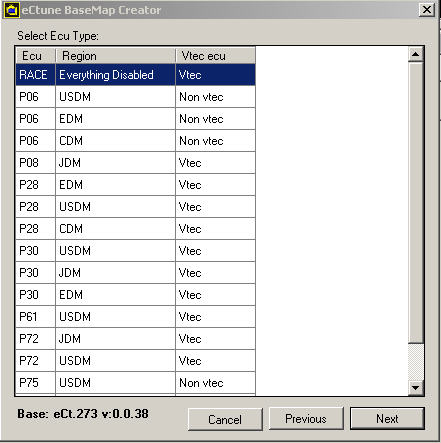
New BaseMap Creator -> Ecu
Type
Here you need to
select the ecu type you have.
This will
set:
-ELD
-Baro
sensor
-Knock
sensor
-Injector
test
-O2
heater
-VTEC enable/disable
-VTEC
points
-Rev limit points(cold/hot)
After selecting the ecu type press
"NEXT"
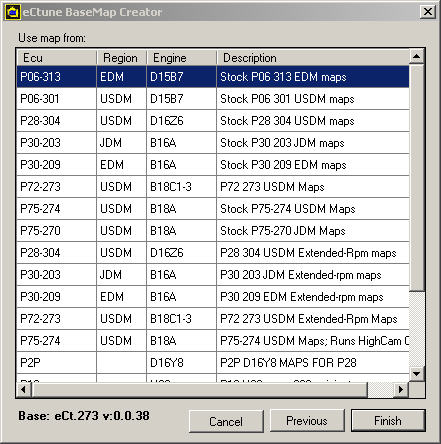
New BaseMap Creator -> Base
map
Here you select
which fuel and ignition map you will start with.
Ecu: Which ecu the map was
orginally
Regoin: JDM/EDM/USDM/CDN
Engine: which engine the stock map was
designed
Description: About the map
Note: You can select a map with
extended high cam rpm scale(11000
rpm)
These are
basemap. Tuning is always required.
After selecting the
right ignition and fuel map press "Finish".