Changing the Passphrase for a Private Key
From SecureCRT
A password used to protect a private key from unauthorized use. It is recommended that a passphrase be assigned to all private keys to prevent unauthorized use, especially in environments where multiple individuals have access to the machine on which the private key files are stored. When using public-key authentication, a private key with an assigned passphrase will not be available if the correct passphrase is not supplied during the authentication process.
SSH is an acronym for the Secure Shell protocol. A communications protocol used to encrypt network traffic between a client and a server.
A session is a set of options that are assigned to a connection to a remote machine. These settings and options are saved under a session name and allow the user to have different preferences for different hosts.
The process of verifying that an individual truly is who he or she claims to be. Supplying a password is a very common method of authentication. The most secure method of authentication supported in SecureCRT is public-key authentication. See also: identity file, public-private key pair.
 Changing the Passphrase for a Private Key
If you would like to change the passphrase for a private key, follow the steps outlined below.
1. In the Connect dialog, select the SSHsession that uses the private key for which you want to change the passphrase.
2. Open
the Session Options
dialog by selecting a session and either clicking on the Properties
button  , or by right-clicking on the selected session
and selecting the Properties menu item from the pop-up menu.
, or by right-clicking on the selected session
and selecting the Properties menu item from the pop-up menu.
3. For
SSH1 sessions: click on the Connections/SSH1
category, select RSA as the Authentication
method and then click on the associated Properties button.
4. For
SSH2 sessions: in the Connections/SSH2
category, select PublicKey in the Authentication window
and then click on the associated Properties button.
5. Click on the Change Passphrase button in the Public Key Properties dialog.
6. In the Change Secure Shell Passphrase dialog (Change Secure Shell Passphrase Dialog below), enter your current passphrase and the new passphrase (twice), and click on the OK button.
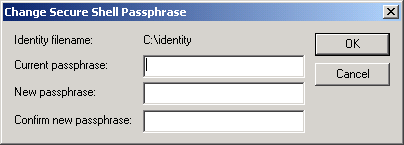
Change Secure Shell Passphrase Dialog