Patching and Usage Analysis SDK
From GameSpy SDK
Patching and Usage Analysis SDK
Overview
GameSpy's Patching SDK simplifies the process of determining when a patch is required for a game and delivering in to the user.
Unlike other patching systems that have complex scripting and file matching requirements, our SDK is requires no changes to the way developers and publishers create patches, and instead focuses on patch identification and delivery. Developers can use existing patch creation tools to create and install their patch, and use the Patching SDK to manage delivery to users.
The SDK is supported by an easy-to-use web interface that developers can use to configure updates. Different updates can be delivered for different versions or distributions of the game. For example, you can have a small patch for version 1.1 to 1.2, and a larger patch to 1.2 for users that still have version 1.0. You can also have different patches based on distribution, so different languages or platforms can have their own set of patches. You can even set the current version on a per-distribution basis, since many games release a patch in one region before localized versions. You can also use distribution patching to allow internal or external beta testers to update to a new version before it's publicly available.
The SDK is also fully-compatible with manually downloading and installing patches - so you can make the patch files available on your web site or on a magazine cover CD, in addition to being available in-game.
The Patching SDK and the backend that supports it have been used for over four years by GameSpy for updating our own software and has been found to be an extremely stable and reliable method of delivering updates to millions of our own users.
Benefits
Auto-patching of games has many potential benefits. Making sure patches are easy to find and install helps reduce customer service issues - when bugs are found and corrected, they fixes are easily distributed to all players, instead of relying on customer service operators directing users to web sites.
The ability to patch the game with upgrades or new content can help extend the life of a game online, and delivering this new content to all players assures the critical mass necessary for it to succeed.
We feel strongly that lack of auto-patching for multiplayer games can be a serious detriment to online play. To demonstrate this, we present below graphs from our master server of online play for two popular multiplayer games over a range of dates. During the date ranges charted on the graph, both games had a major patch released.
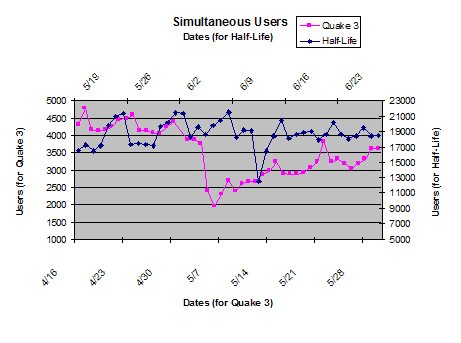
Quake 3, which does not have an auto-patching system (although it does have a patch notification system in-game), was averaging around 4200 simultaneous players before their patch on 5/4. After the patch, usage dropped sharply and it was more than a month before online play returned to previous levels. There are undoubtedly large numbers of players that were never able to locate or install the patch, and thus never returned to play the game online.
In contrast, Half-Life, which has a combination internal/external auto-patching system, was averaging 19000 simultaneous players before their patch release on 6/8. After the release there is a short dip, but usage quickly returned to normal as players are automatically patched to the latest version.
INSERT IMAGE HERE, y0!How It Works
User Perspective
First, here is an example of what a user might see in a game using the Patching SDK.
- Player launches the game
- After launching the game, the player is notified that a new version is available
- The player is given the option to download and install the patch
- After the download is complete, the game exits and the patch installer begins the patch installation process
- Once the patch install is complete the game is re-launched and the user continues
Developer Perspective
To understand how the system works "under the covers" it is important to first understand what we classify as a unique version.
A version is identified by the combination of 3 identifiers:
- productID
- Each game is issued a unique productid by GameSpy for their game. Games on multiple platforms may be issued multiple productIDs.
- distributionID
- Different distributions can be patched with different patches. If you only have one distribution, simply use 0 for the distribution ID. Otherwise send us a list of the distributions you want patched separately and we'll send you distribution IDs for them.
- versionUniqueID
- This is a string that uniquely identifies a particular versions. This string can be anything you want, as long as it is different for each version you want to differentiate between. For example, it can be "1" then "2" then "3" or "1.0" then "1.01" then "1.1" or even "version1" "next version" "third version". This string is not shown to users anywhere, any may be up to 30 characters long.
When the game is running and wants to check if a patch is available it first determines its identifiers. These identifiers are usually compiled in (for example, as defines), but can also be read from an external resource if its more convenient.
The game then calls ptCheckForPatch() with the identifiers, and a callback that will get called when the check is complete. This call can either be blocking or non-blocking. If done non-blocking, the function ghttpThink() must be called on a regular basis until the check is complete to poll for results.
The Patching SDK then contacts the GameSpy Patching Backend to determine whether an update is required for the user, and if so what patch they need to get.
To determine whether an update is required, the Patching Backend consults the Current Version List for the given productID. The Current Version List can have a different current version for each distribution, and is editable using the web interface as described below.
Once the Patching Backend determines the current version for the given productID and distributionID, it compares it to the versionUniqueID passed from the game to see if they match. If they do, the user has the current version and the backend notifies the SDK.
If the current version does not match, then the Patching Backend needs to determine what patch (if any) to send the user. Before checking the list of patches, it checks the Known Version List for the versionUniqueID passed from the game. If that uniqueID does not exist in the list of known versions, it adds it. If it does exist, it checks whether the "Internal Version" flag is set. If the "Internal Version" flag is set on this version reported from the game, then no patching is done (typically this is used for betas or other test versions, that are not technically the current version, but should not be patched to the current version either). This Known Version List can be edited to give versions descriptive names (that will be displayed to users when asked to patch) or mark versions as Internal using the web interface described below.
Next the Patching Backend checks the Patch Information List to locate a patch that will get this version to the latest version. The Patch Information List (which is editable using the web interfaces described below) contains a list of all the patches available for a game. A patch is defined as the combination of a start version, end version, and distribution. You can mark the start version as "any" in which case it is assumed that if a more specific patch is not found, the "any" patch will be able to patch any version to the given end version. Distribution can also be selected as a specific distribution, or "any" if the patch can be used for any distribution.
The Patching Backend tries to locate the most-specific patch possible by trying to match the start version, end version (being the current version we're trying to patch to) and distribution as reported from the game. If an exact match is not found, it tries the more general cases (any start version, any distribution) to see if it can find a patch that will get the game to the current version. If it does not find a patch, it returns to the game as if the user has the current version. If it does find a patch, it returns the name of the new version, as well as the information needed to download the patch to the Patching SDK.
At the end of this process, the Patching SDK calls the game callback and indicates whether a patch is available, and if so, where to download it from. This whole process typically takes less than 1 second.
One you've determined whether a patch is available, you can allow the user to choose to download and install it. The Patch Information Table can contain two different things that allow you to determine where to download a patch from. The first is just an HTTP URL to the patch executable. You can use the HTTP SDK or the external FPUpdate utility (described below) to download and execute the patch. The other item the Patch Information Table can contain is a FilePlanet FileID number. This number can be used with FilePlanet and a web browser, allowing a user to download the file themselves.
Creating Patches
The Patching SDK does not provide any direct functionality for creating patches. We've found that developers and publishers typically already have their own systems for creating patches, or have already licensed a 3rd party patching tool.
Two products that we've seen successfully used are RTPatch and Wise InstallMaster, but there are many others on the market.
Generally it's best if you consider your patching software and strategy before releasing your product. Some CD Copy-protection schemes can make patching difficult, and some products work better with some games than others, so we suggest testing any patching product with you game before it goes gold.
If you use the FPUpdate (described below) to download and install the patch, the patch must be in a self-contained, self-installing EXE form. Most patching products are capable of creating patches in this form. If you manage the download / installation of the patch yourself, you can download the patch in whatever format you want.
One question that is often raised about our patching system is the ability to handle multi-part patches. That is, the ability to have one patch that goes from 1.0 to 1.5, another patch that goes from 1.5 to 1.7, a patch that goes from 1.7 to 2.0, and have the Patching SDK download all three files and run them in-order for version 1.0 clients. We decided not to directly support multi-part patching for a variety of reasons (mainly having to do with ambiguities in determining patching paths) and instead suggest that developers create and test full patches for each version they want to patch (e.g. 1.0 to 2.0, 1.5 to 2.0, and 1.7 to 2.0) or, create a small patch for the most recent version to the new version (e.g. 1.7 to 2.0), and then a larger patch that can patch any previous version to the new version (e.g. 1.x to 2.0). In our experience these two methods lead to better results compared to trying to install multiple generational patches. Even safer is creating a single patch that can be applied to any existing version to bring it to the new version (e.g. x.x to 2.0) but this often leads to larger patches.
For developers that still require mutli-part patches, we do have a solution available that works with the current Patching SDK. Contact developer support for more information.
File Manifest
The following files should be included with this package. If any of the files are missing, please contact devsupport@gamespy.com.
- File
- Description
- ptMain.c
- Patching / Usage Analysis SDK code
- pt.h
- Patching / Usage Analysis SDK header file
- pt.dsp
- Example and test code for the Patching and Usage Analysis SDK
- pt.dsw
- Devstudio Workspace for API / sample code
- pttestc.c
- Example code
- pttestc.dsp
- Example code project
The HTTP SDK and GameSpy Common Code are also required for the Patching and Usage Analysis SDK.
Implementation
The following is a quick rundown of the various functions in the Patching SDK. The pt.h file contains additional documentation for each function.
ptCheckForPatch
This function is used to check if a patch is available for a certain version of a product. The three things that are used to uniquely identify a version of a product are passed in: product ID, version unique ID, and distribution ID. The SDK will then check for a new patch and call the callback. If the blocking parameter is PTTrue, then this function won't return until it finishes checking for a patch, or there is an error. If there is any sort of error initiating the check, then this function will return PTFalse, and the callback will not be called. For more info on the callback, see the description of ptPatchCallback below.
PTBool ptCheckForPatch
(
	int productID,
	const char * versionUniqueID,
	int distributionID,
	ptPatchCallback callback,
	PTBool blocking,
	void * param
);
- productid
- The product ID of the application for which to check.
- versionUniqueID
- The string that uniquely identifies this version. Max 30 characters.
- distributionID
- The distribution ID for this distribution of the application. Can be 0.
- callback
- This gets called with information about a possible patch.
- blocking
- If PTTrue, the function won't return until the callback has been called.
- param
- This is optional user-data that will be passed into the callback.
ptPatchCallback
This callback gets called as a result of the ptCheckForPatch function being called. See above for more info.
typedef void (* ptPatchCallback)
(
	PTBool available,
	PTBool mandatory,
	const char * versionName,
	int fileID,
	const char * downloadURL,
	void * param
);
- available
- PTTrue if a newer version is available. PTFalse, ignore the other parameters.
- mandatory
- If PTTrue, this patch has been marked as mandatory.
- versionName
- A user-readable display name for the new version.
- fileID
- A FilePlanet file ID for the patch. Can be 0.
- Used to form a FilePlanet URL so the user can download the file.
- param
- This is optional user-data that was passed to ptCheckForPatch.
Using The Web Admin Interface
The web administration interface is located at http://motd.gamespy.com/admin/patching/login.html . It is used for administering the backend of the Patching SDK. The login system uses GameSpy ID for authentication. If you have not already done so, create a GameSpy ID account and send the e-mail address you used to devsupport@gamespy.com. You account will be given access to the admin page for your product, and you will be sent the productid number to use.
Login Screen
At the login screen, enter the login name, password, and productid you have been issued for your product.
Once your login has been verified, you will be sent to a page where you can access the various lists needed to administer the system.
Known Version List
The Known Version List contains a list of all of the versions that have been reported for your product. You can select a version and push the Edit button to edit it.
The two fields you can edit for each version are the name and the internal flag. The Version Name is used throughout the web interface to identify the version, and is sent to the Patching SDK by the Patching Backend when a client is notified of a new version. It should generally be a user-displayable string.
The internal flag is used to mark a version that should not be auto-updated (even if it doesn't match the current version). Typically this is used to flag internal or pre-release versions so that users testing them don't get update notifications to the current public version.
Versions are added to the Known Version List the first time a versionUniqueID is checked via the Patching SDK. The version list for your product will initially be empty - the first time you run a check with the Patching SDK, whatever versionUniqueID you use will create a new entry in the Known Version List, which you can then edit via the web interface. Because entries are added automatically, you never need to worry about a mismatch between what is being reported via the Patching SDK and the versions listed on the web page.
Current Version List
The Current Version List is where you set which version is the most current for your product. If you are only using a single distribution, you should only have a single entry (with a distribution of "Normal" or "Any" - both will work). If you have multiple distributions that all have the same current version, you can simply set the distribution to "Any". If you need separate current versions for different distributions, you can add multiple entries.
Existing entries can be updated or deleted. You can simply update your entry when a new upgrade is available for a particular distribution.
Patch Information List
The Patch Information List contains the list of patches that are available for your product. You can add a new patch by specifying a start version, end version, and distribution. If the patch can be applied to any version to bring it to the end version, just select "Any" under start version. If the patch can be applied to any distribution (or you only have 1 distribution) select "Any" for the distribution - otherwise select the distribution the patch is appropriate for. You must add at least one of the two download location methods: Either a full URL or a FilePlanet FileID. You can enter data for both if you have both a FilePlanet Mirror and a separate web server mirror.
Existing patches can be updated with new locations or deleted. Generally you do not need to delete old patches, even if they aren't going to be used any more (because the version they patch to is no longer the current version), however you can delete patches if desired.