Using Add-In Functions in a Report
From Alchemex
Home >
Using Add-In Functions in a Report
Sage Accpac Intelligence supplies Add-In’s that further enhance Excel’s reporting capabilities. These Add-Ins are designed to tackle common problems that come up during reporting. The list of available Add-In Functions is regularly updated so for the most comprehensive list of functions update your software on a regular basis.
To use an Add-In function on a report do the following:
- Select your report.
- Place a check in the Show Advanced option checkbox.
- Press the lookup button next to the Run Add-Ins field.
An Add-In function selection screen will appear. Once selections have been made, the screen appears as shown below:
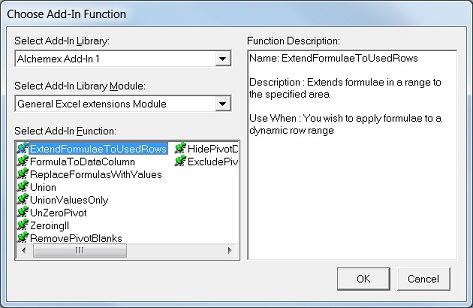
- Start by selecting the Add-In Library.
- A list of Modules for the selected library will then become available in the Select Add-In Library Module drop down box.
- Select a Module.
- A list of Add-In functions will then be displayed in the Select Add-In list.
- To see a description for a Function you can select the function and view the description on the right hand side.
- Once you have chosen your Add-In function click OK.
A screen will appear for specifying the relevant Function Parameters, as shown below:
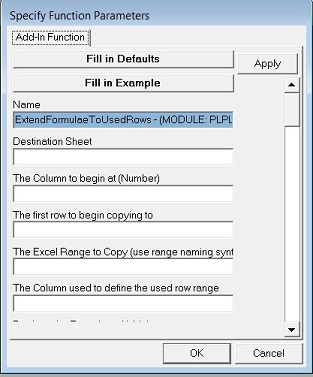
- Specify your Function Parameters and click OK.
- The Add-In function should now appear in the reports Run Add-Ins property field.
Whenever this report is run the Add-In will now be executed. To edit the parameters of an Add-In function that has been specified already simply click the Add-In Function Builder button next to the Run Add-Ins box on your report properties and select the Function that you wish to edit, then follow the same steps as above.
- Add-Ins placed in the "Run Add-Ins" property field will always run before any macros placed in the "Run Macros on Completion" property field.
- Should you wish to have an Add-In run after a macro, then either place the Add-In in the "Run Macros on Completion" property field after the macro name or, place the macro name in the "Run Add-Ins" property field before the Add-In.