Scheduling a Report
From Alchemex
Home >
Scheduling a Report
Sage Accpac Intelligence reports can be run unattended, from Operating System batch files or under the control of external scheduling software(such as the Microsoft Windows Scheduler or the Microsoft SQL Server Agent). This can be useful when you have certain reports that you need to run on a regular basis.
When reports are run unattended they are automatically closed on completion. Scheduled reports must use the Generate Output File in the Advanced report or the Retain All Run Instances option to be useful. See Advanced Report Properties for more information.
Typically reports that are scheduled will have the Generate Output File property set so that the unattended reports are saved to a specific location. Set this property under the Advanced options on the Report Properties tab. Click here for more details.
To generate the command to schedule a report run:
- Open the Report Manager.
- Select the report you wish to generate a schedule command for.
- Click on the Schedule Icon

- If the report expects parameters then you will be prompted to enter these. Enter any necessary parameters and click OK.
- A message box will then appear that will display the syntax for
the running the report. Additionally this text will be placed on the
windows clipboard so that it can be pasted into the application or
batch file that will be controlling it. An example is shown below.
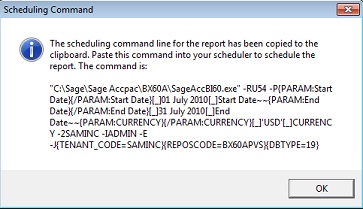
When reports are run unattended the information that is usually sent to the Process Monitor window is redirected to a log file. You should review this log file to make sure that your reports are running as expected. The log file is named BICoreUnattend.log and can be found in the Intelligence folder which is a sub folder of the Sage Accpac Intelligence Installation folder.
You can view this log file in a text editor application such as Notepad.
The file can also be opened directly from the Connector. To do this open the Connector and choose the Menu item Tools > Open Log File.
The application returns a process exit code for the scheduled report to indicate Success (0) or Failure (1) allowing the calling process to check the result of a shelled report.
To view an example of how to schedule a report using the Windows Scheduler click here.