Configuring the Rendering Engine
From Alchemex
Home > Connector > Maintaining the Connector > Configuring the Rendering Engine
Configuring the Sage Accpac Intelligence Rendering Engine
The Sage Accpac Intelligence data rendering engine can be configured to include or omit certain steps in the rendering process.
Note that these changes are global and affect how all your Sage Accpac Intelligence reports run. The default settings should only be changed if there is a specific reason for the change. Usually these settings are only changed when trying to isolate problems for slow running or problematic reports.
To change configuration settings Launch the Connector. Select the Sage Accpac Intelligence Enterprise object in the Object Window and on the Tools menu click Configure Excel Output Engine.
The screen shown below will appear:
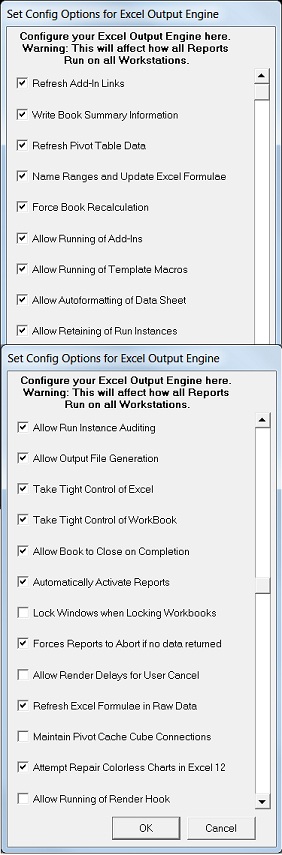
Toggle on or off the required settings and then click OK. Each setting corresponds to a step performed by the Sage Accpac Intelligence rendering engine. Switching the setting off will stop that step from running for all reports until such time that the setting is set back on.
An explanation for each option is listed below:
Refresh Add-In Links - Refreshes links in Excel to Add-In libraries. This option is necessary when functions are used in your workbooks that are outside of the standard Excel function set (e.g. functions in the Analysis Toolpak add-in).
Write Book Summary Information - Writes report summary information to each workbook.
Refresh Pivot Table Data - Refreshes Pivot Table data for all pivot tables in a report.
Name Ranges and Update Excel Formulae - Applies Sage Accpac Intelligence standard Name Ranges for data columns and data ranges as well as updating formulae which might reference Named Ranges. N.B. Do not switch this option off if any of your reports use Named Ranges or Sage Accpac Intelligence Excel Formulae type expressions defined in your Data Containers.
Force Book Recalculation – This option instructs the workbook to recalculate all formulae after data has been rendered. If you switch this option off then your reports will have to be manually recalculated by the user. It is best not to turn this option off.
Allow Running of Add-Ins - This step runs the Sage Accpac Intelligence Add-in functions defined on reports. Only switch this option off for debugging purposes.
Allow Running of Template Macros - This step runs the Template Macros defined on reports. Only switch this option off for debugging purposes.
Allow Autoformatting of Data Sheet - This step facilitates the automatic formatting of raw data sheets, e.g. column widths.
Allow Retaining of Run Instances - This step facilitates the saving of report instances at run time.
Allow Run Instance Auditing - This step facilitates the saving of report audit instances at run time.
Allow Output File Generation - This option allows reports to be saved to a specific location.
Take Tight Control of Excel - Allows Sage Accpac Intelligence to take tight control of Excel while running a report. This is to stop a user from causing problems with a report while it is running. Switching off this option could cause your reports to be unreliable and is not recommended. Use this option for debugging problematic reports only.
Take Tight Control of Workbook - Allows Sage Accpac Intelligence to take tight control of the Excel Workbook for a report while running a report. This is to stop a user from causing problems with a report while it is running. Switching off this option could cause your reports to be unreliable and is not recommended. Use this option for debugging problematic reports only.
Allow Book to Close on Completion - This option allows reports to be closed on completion automatically. This option is generally used for reports which have been set to run unattended.
Automatically Activate Reports - This option allows Sage Accpac Intelligence to activate reports on completion, for example, you want to run a number of reports in sequence on a monthly basis, so set a command in the properties of the first report to automatically run the next report as soon as it has run, and so on.
Lock Windows when Locking Workbooks - This option can be used to select the way you wish Sage Accpac Intelligence to Lock Workbooks when the "Protect the Output Book" option is used on a report. Leaving the option on will cause Workbook Windows to be locked as well as the Workbook Data and structure. Switching it off will only lock Workbook data and structure and not the actual Workbook Window.
Forces Reports to Abort if no data returned - This option can be used to configure the way in which a report that obtains no data during its "Data In" phase continues. If this option is set on then the report will abort, saving some time. If the option is set off then the report will continue to run but with no data.
Allow Render Delays for User Cancel - This option is used to allow a user the option of canceling a report while it is running data into Microsoft Excel. This option, although useful, significantly slows down the data out phase of a report run. Switch this option off to speed report execution time. If you have problematic reports that need the user cancel facility then this option should be checked on.
Refresh Excel Formulae in Raw Data - If Excel formulae are used in a container and then in a report, it can come through uncalculated or with errors. Selecting this option will force Microsoft Excel to recalculate these.
Maintain Pivot Cache Cube Connections - For cube reports this instructs Excel to keep a database connection to the cube open while the book is open so that each drill down in the pivot table does not need to reconnect to the cube. If this option is off (the default) then Excel reconnects to the cube on each Pivot query.
Attempt repair Colorless Charts in Excel 12 - Some templates that were created in Microsoft Excel 2003 or earlier versions lose their colors when run out into Microsoft Excel 2007 due to a change between versions. This option attempts to run out the reports and repairing the chart colors.
Allow Running of Hook - A workbook generated by the running of a report, can be customized by an external dll.